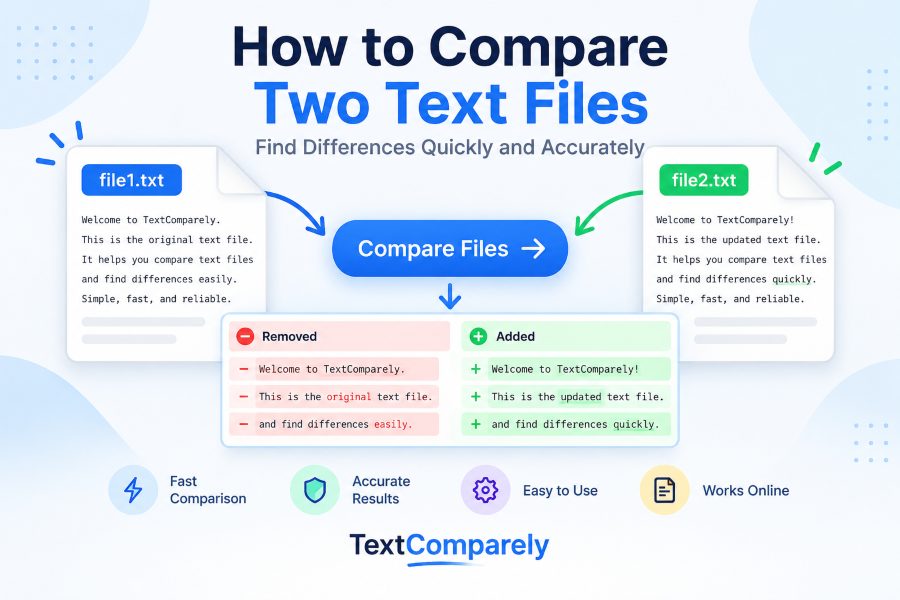
Have you ever worked on two versions of a document and struggled to figure out exactly what changed? Maybe someone edited your content, updated a configuration file, or modified a piece of code. Reading both files line by line can be frustrating, especially when the documents contain hundreds or thousands of words.
Fortunately, you don’t need to manually search for every difference.
An online text comparison tool lets you compare two text files side by side and quickly identify changes, additions, and deletions. Whether you’re a writer, student, developer, editor, or business professional, comparing text files online can save time and reduce the risk of overlooking important changes.
In this guide, you’ll learn how to compare two text files online, understand how text comparison works, explore different comparison methods, and discover practical tips for getting accurate results.
What Does It Mean to Compare Two Text Files?
Comparing two text files means examining their contents to identify similarities and differences.
A text comparison tool analyzes the original and modified versions of a document to determine which parts have been added, removed, or changed.
For example, imagine you have two versions of a sentence.
Original text:
“The website provides free tools for checking and comparing documents.”
Modified text:
“The website provides powerful online tools for checking and comparing text documents.”
An online comparison tool can reveal that:
- The word “free” was replaced with “powerful online.”
- The word “text” was added before “documents.”
- The remaining words are unchanged.
Instead of manually identifying these changes, a text comparison tool highlights them so you can review the differences quickly.
This is particularly useful when multiple people are editing the same document or when you need to verify changes between different file versions.
Why Should You Compare Two Text Files Online?
Comparing files manually might seem easy when you’re dealing with a few sentences. However, the process becomes much more difficult when the files contain extensive content.
Here are some important reasons to use an online text comparison tool.
1. Identify Changes Quickly
An online tool can identify differences between two text versions without requiring you to read every line manually.
You can focus directly on the sections that have changed.
2. Reduce Human Errors
When reviewing documents manually, it’s easy to overlook a missing word, modified number, or punctuation change.
Automated comparison helps surface differences that might otherwise go unnoticed.
3. Save Time
Comparing long documents can take considerable time.
A text comparison tool processes the content and presents the differences in a more manageable format.
4. Improve Document Accuracy
For contracts, reports, articles, and technical documentation, even minor changes can affect meaning.
Comparing documents allows you to verify that the intended revisions were made.
5. Make Collaboration Easier
When several people work on the same content, comparing versions helps you understand what each contributor changed.
It can also make reviewing edits and approving revisions more efficient.
How to Compare Two Text Files Online: Step-by-Step
The simplest way to compare two text files is to use an online text comparison tool.
You generally don’t need to install specialized software or learn complicated commands.
Follow these steps to identify differences between two files.

Step 1: Open an online text comparison tool
Visit TextComparely in your web browser.
Open the text comparison interface. You will need two text input areas to enter the original and modified content.

Step 2: Prepare your text files
Locate the two files you want to compare.
For example:
original.txtupdated.txt
Open both files using a text editor such as Notepad, Visual Studio Code, or another application that supports text files.

Step 3: Enter the original text
Open the first file and select its contents.
Press Ctrl + A to select all text, followed by Ctrl + C to copy it. On a Mac, use Command + A and Command + C.
Paste the content into the first input area of the comparison tool.
This will serve as your original version.

Step 4: Enter the modified text
Open the second text file and copy its contents using the same process.
Paste the modified text into the second input area.
Make sure you haven’t accidentally pasted the same file into both fields.

Step 5: Compare the two texts
Once both text versions are ready, use the tool’s comparison function.
The tool will analyze the text and identify differences based on its comparison method.
Depending on the tool, these differences may appear as highlighted words, modified lines, or side-by-side results.

Step 6: Review the differences
Carefully examine the comparison results.
Look for added sentences, deleted words, modified values, punctuation changes, and missing paragraphs.
Review each difference to determine whether the modification was intentional.

Step 7: Correct and save your document
After identifying the differences, update your document as needed.
Accept intended changes, correct mistakes, and save the final version using your preferred text editor.
Run another comparison if you need to confirm that the remaining differences have been resolved.
Helpful tip: Keep an untouched copy of the original file before making corrections. This gives you a reliable reference if you need to review previous changes.
Example: Comparing Two Text Files Online
Let’s look at a practical example.
Suppose you’re reviewing a website description, and someone has provided an updated version.
File 1: Original version
Our platform helps users compare documents.
It is simple and easy to use.
The service is available online.
File 2: Updated version
Our platform helps users compare text documents.
It is fast and easy to use.
The service is available online for free.
After comparing the two files, you can identify three differences.
| Original text | Updated text | Change |
|---|---|---|
| compare documents | compare text documents | Word added |
| simple | fast | Word replaced |
| available online | available online for free | Words added |
The comparison reveals exactly what changed without requiring you to inspect each sentence manually.
This approach works for short paragraphs, lengthy documents, website content, code snippets, and other text-based material.
Different Methods to Compare Two Text Files
Although online comparison tools offer a convenient solution, other methods are available depending on your requirements.
Understanding the differences can help you choose an appropriate approach.
Method 1: Use an Online Text Comparison Tool
An online text comparison tool is a straightforward option when you want quick results.
You can paste the contents of two files into the comparison interface and examine their differences.
Best for: Writers, students, content editors, website owners, and users who want to compare text without installing software.
The main advantage is convenience. You can use the tool directly in a compatible browser.
However, you should check the website’s privacy practices before submitting confidential information.
Method 2: Compare Files Using a Text Editor
Some advanced text editors support document comparison through built-in features or extensions.
For example, Visual Studio Code supports file comparison through its editor interface.
You can open the files, select one for comparison, and compare it with another.
This method is particularly useful for developers who already use a code editor.
Best for: Programmers, technical writers, and people who frequently work with local files.
Method 3: Use Command-Line Comparison
Developers can compare text files using command-line tools.
On Linux and macOS, the diff command is a common option.
Example:
diff original.txt updated.txtThe command displays differences between the files.
For a unified comparison format, you can use:
diff -u original.txt updated.txtOn Windows, the Command Prompt provides the fc command:
fc original.txt updated.txtThese methods are useful for automation, scripting, and development workflows.
However, they may be less convenient for users who prefer a visual comparison.
Understanding the Types of Differences in Text Files
When you compare two text files online, the results can contain several types of differences.
Recognizing these categories helps you interpret the comparison correctly.
Added Text
An addition occurs when new content appears in the modified version.
For example:
Original: “Compare documents quickly.”
Modified: “Compare text documents quickly.”
The word “text” was added.
Deleted Text
A deletion happens when existing content is removed.
Original: “Compare multiple text documents instantly.”
Modified: “Compare text documents instantly.”
The word “multiple” was deleted.
Modified Text
A modification occurs when existing content is replaced.
Original: “Our tool is simple.”
Modified: “Our tool is powerful.”
Here, “simple” was replaced with “powerful.”
Some comparison algorithms may represent a replacement as a deletion followed by an addition.
Whitespace Changes
Whitespace differences include additional spaces, tabs, and line breaks.
For example, two files may contain the same words but have different indentation.
This can matter when comparing source code, configuration files, or formatted text.
Capitalization Changes
A comparison tool may detect differences between uppercase and lowercase letters.
For example:
“Text Comparison Tool”
“text comparison tool”
Whether these versions are treated as different depends on the tool’s case-sensitivity settings.
Punctuation Changes
Even a small punctuation modification can change the meaning of a sentence.
Consider these examples:
“Let’s eat, Grandma.”
“Let’s eat Grandma.”
A character-level comparison can help reveal punctuation differences that might otherwise be overlooked.
How to Compare Large Text Files Without Missing Differences
Large text files can be more challenging to review because they may contain thousands of lines.
You can make the process easier by following a structured approach.
Start with the original version. Always keep the original file in the first comparison field. This makes it easier to understand whether content was added or deleted.
Preserve the file structure. Avoid manually removing line breaks or changing indentation before comparing the documents. These modifications can create additional differences.
Review changes in sections. Instead of examining the entire comparison at once, review one paragraph or section at a time.
Focus on important modifications. Prioritize changes involving numbers, URLs, names, dates, technical instructions, and important wording.
Compare again after editing. Once you have corrected the document, perform another comparison to confirm that the intended changes are present.
For particularly large files, check whether the chosen online tool has input-size limits. If necessary, use a desktop application or command-line utility that can handle the file size.
Common Problems When Comparing Text Files Online
Sometimes a comparison produces unexpected results.
Here are several common issues and how to resolve them.
1. Both Files Appear Identical
If the tool reports no differences, first verify that you entered two different versions.
You might have accidentally copied the same file twice.
Also check whether the differences involve spaces or capitalization that the tool may be configured to ignore.
2. Too Many Differences Appear
A comparison may show numerous changes even when the documents look similar.
Possible causes include:
- Different line breaks.
- Extra spaces or tabs.
- Changes in indentation.
- Different character encodings.
- Large sections moved to different locations.
Check formatting and encoding before comparing again.
3. Special Characters Display Incorrectly
Characters such as accented letters, symbols, and quotation marks may appear incorrectly if the source files use incompatible encodings.
Opening both files with the correct encoding, commonly UTF-8, can help resolve this issue.
Avoid converting files without keeping backups.
4. The Tool Cannot Process the File
Some online comparison tools accept pasted text but do not directly support every file format.
If the tool doesn’t accept your file, open it in a compatible application and copy the text into the comparison fields.
For PDF or Word documents, extract the text using an appropriate application before comparing it.
Be aware that extracting text may change spacing, line breaks, or formatting.
5. Changes Are Difficult to Understand
A comparison algorithm may display a substantial edit as several smaller additions and deletions.
Read the surrounding content to understand the full meaning of the change.
For complex revisions, comparing entire paragraphs can provide more context than reviewing individual highlighted words.
Practical Uses of Online Text Comparison Tools
Text comparison is useful in many everyday and professional situations.
Here are some common examples.
Comparing Website Content
Website owners frequently update product descriptions, landing pages, and blog posts.
An online text comparison tool helps identify what changed between the original and updated content.
For SEO professionals, this can be particularly useful when reviewing modifications to headings, meta descriptions, and important page content.
Reviewing Academic Documents
Students and researchers often create several versions of essays, assignments, and research papers.
Comparing drafts helps them identify revisions and verify that feedback has been incorporated.
It also makes it easier to review changes made by collaborators.
Checking Source Code
Developers can compare different versions of code to identify modifications.
For example, they might compare two JavaScript files to locate an altered function or missing line.
For complex programming projects, dedicated version-control systems such as Git provide more advanced change tracking.
Reviewing Business Documents
Business professionals can compare reports, proposals, and agreements.
This is especially important when numerical values or contractual wording have changed.
Text comparison helps identify these changes, although it does not replace a thorough legal or professional review when one is necessary.
Editing and Proofreading
Writers and editors can compare drafts before and after revision.
This helps them confirm that grammatical corrections, rewritten sentences, and structural changes were applied correctly.
Best Practices for Accurate Text File Comparison
To get reliable results when comparing two text files, follow these recommendations.
- Use the correct file versions. Clearly identify which file is the original and which is the updated version.
- Keep backups. Save an untouched copy of each file before editing.
- Maintain consistent encoding. UTF-8 is a widely supported encoding for plain-text files.
- Check whitespace settings. Decide whether spaces, tabs, and line breaks are important to your comparison.
- Review the context. Don’t assume that every highlighted difference represents a mistake.
- Protect sensitive information. Avoid pasting passwords, API keys, private customer data, or confidential documents into an online service unless its privacy and security practices meet your requirements.
- Verify the final result. Compare the corrected file against the intended version before considering the task complete.
These practices can improve accuracy and help prevent unintended changes.
Online vs. Offline Text Comparison: Which Should You Use?
Both online and offline comparison methods have advantages.
The appropriate choice depends on your workflow, file size, and privacy requirements.
| Feature | Online comparison | Offline comparison |
|---|---|---|
| Software installation | Usually unnecessary | May require software |
| Internet connection | Usually required | Usually unnecessary |
| Ease of access | Accessible through a browser | Depends on installed tools |
| Large file support | Varies by service | Varies by application |
| Privacy | Depends on service practices | Can remain entirely local |
| Developer workflows | Useful for quick comparisons | Often better for integration and automation |
For everyday tasks involving ordinary text, an online tool is often a convenient option.
For confidential documents, large codebases, or automated workflows, a suitable offline solution may be preferable.
Frequently Asked Questions
Can I compare two text files online for free?
Yes. Free online text comparison tools are available for identifying differences between two text versions. You can often paste the contents into two input fields and compare them without installing additional software. Features and usage limits vary by service.
How do I find differences between two text files?
Open both files, copy their contents, and paste them into an online comparison tool. Run the comparison and review the highlighted additions, deletions, and modifications. You can also use desktop text editors or command-line utilities.
Can I compare two TXT files without downloading software?
Yes. A browser-based text comparison tool allows you to compare the contents of two TXT files without installing specialized comparison software. If direct file uploads are not supported, open the files in a text editor and paste their contents into the tool.
Can I compare two text files with different line breaks?
Yes, but different line breaks may produce additional differences. Some comparison tools allow you to ignore certain whitespace changes. Otherwise, you may need to standardize the formatting before comparing the files.
Can I compare Word or PDF documents using a text comparison tool?
You can compare their extracted text, but a plain-text comparison may not preserve page layouts, images, tables, or other formatting. For detailed document formatting changes, use software designed for comparing those file formats.
What is the difference between text comparison and plagiarism checking?
Text comparison examines two supplied versions and identifies differences between them. Plagiarism checking looks for similarities between content and other sources, often using a larger document database or web index. These tools serve different purposes.
Is it safe to compare confidential text files online?
It depends on the service’s data handling, storage, and security policies. For sensitive information, review those policies before submitting any content. A trusted offline comparison application is another option when documents must remain on your device.
Final Thoughts
Learning how to compare two text files online can simplify document editing, content review, programming, and many other tasks.
Instead of spending time manually searching for small changes, you can use a text comparison tool to identify additions, deletions, and modified content.
The process is straightforward: prepare your files, enter both text versions, run the comparison, and review the differences.
Whether you’re checking a short paragraph or reviewing a lengthy document, a structured comparison helps you identify changes more efficiently.
For your next comparison, try TextComparely to compare text online and review the differences between your original and updated content.