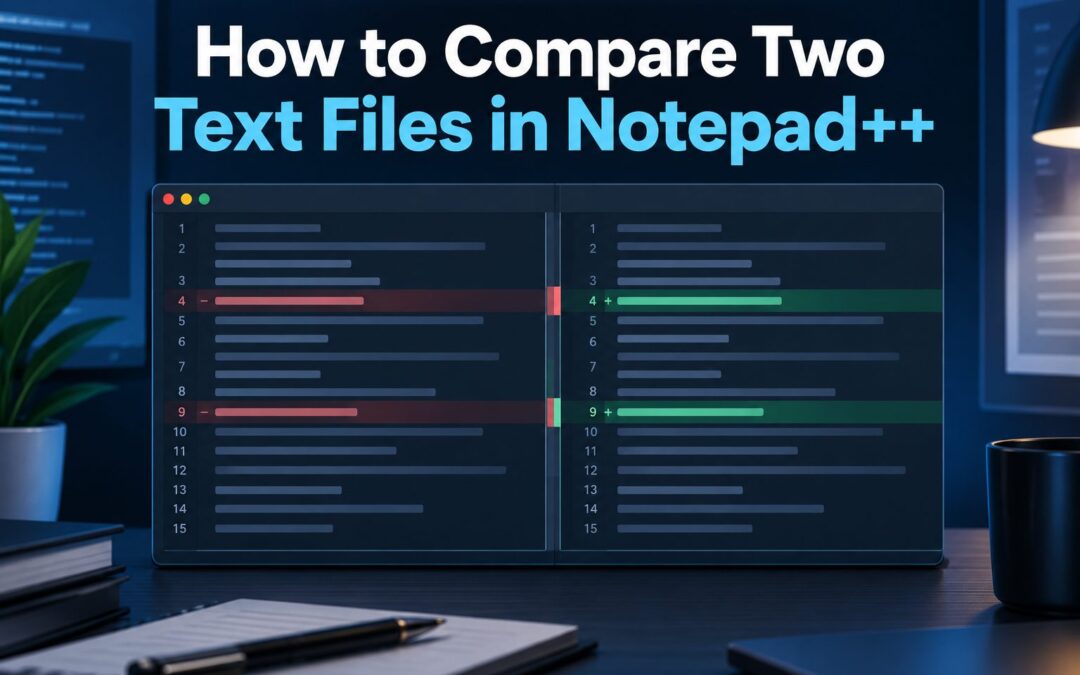
Comparing two text files manually can be frustrating, especially when they contain hundreds or thousands of lines. A single missing character, changed sentence, or extra space can be difficult to find by reading both documents separately.
Fortunately, Notepad++ makes this process much easier with file comparison plugins.
Whether you’re reviewing two versions of a document, checking programming code, comparing configuration files, or identifying changes in exported data, you can use Notepad++ to display differences side by side.
In this guide, you’ll learn how to compare two text files in Notepad++, install the Compare plugin, understand highlighted differences, troubleshoot common problems, and explore alternative methods.
Quick Answer: How to Compare Two Text Files in Notepad++
The easiest method is to install the Compare plugin and open your files in separate tabs.
Follow these steps:
- Open Notepad++ on your Windows computer.
- Navigate to Plugins → Plugins Admin.
- Search for the Compare plugin.
- Select the plugin and click Install.
- Restart Notepad++ when prompted.
- Open the two text files you want to compare.
- Navigate to Plugins → Compare → Compare.
Notepad++ will display both documents side by side and highlight their differences, making it easier to identify added, deleted, and modified content.
You can use this approach for .txt, .html, .css, .js, .json, and other text-based files.
What Is Notepad++ and Why Use It for File Comparison?


5
Notepad++ is a free, open-source text editor for Windows. It supports multiple programming languages, syntax highlighting, line numbers, search and replace, and extensions that add extra functionality.
Although Notepad++ does not provide a full automatic file comparison feature by default, you can install a plugin to identify differences between documents.
Here are several situations where file comparison is useful:
- Content editing: Identify paragraphs or sentences changed between two drafts.
- Software development: Review modifications to HTML, CSS, JavaScript, or Python files.
- Configuration management: Detect changed settings in application configuration files.
- Data verification: Find differences between CSV exports or text-based reports.
- Website maintenance: Check whether a file has changed after an update.
For example, suppose you have an original HTML file and an updated copy. Instead of checking every line manually, a comparison plugin can highlight changes and help you locate modified code.
This is particularly useful when working with long documents containing only a few changes.
How to Install the Compare Plugin in Notepad++
Before comparing two files, make sure the Compare plugin is installed.
The installation process is straightforward and usually requires only a few clicks.
Step 1: Open Notepad++
Launch Notepad++ from your desktop or Windows Start menu.
If the application isn’t installed, visit the official Notepad++ download page and download a suitable version for your computer.
Complete the installation and open the editor.
Step 2: Open Plugins Admin
Find the Plugins menu at the top of the application window.
Click:
Plugins → Plugins Admin
A separate window will appear, displaying available plugins.
Plugins Admin is the built-in interface for installing, updating, and removing supported extensions.
Step 3: Search for the Compare Plugin
Inside Plugins Admin, select the Available tab.
Enter Compare in the search field.
Look for the plugin named Compare. You may also see ComparePlus, which is a more advanced alternative.
For this tutorial, select the standard Compare plugin first.
Step 4: Install the Plugin
Select the checkbox next to Compare and click Install.
Notepad++ may ask for permission to close and restart the application.
Approve the restart so that the plugin can finish installing.
Step 5: Verify the Installation
After Notepad++ reopens, navigate to:
Plugins → Compare
If you can see the comparison commands, the installation was successful.
You can also return to Plugins Admin and check the Installed tab.
The plugin is now ready to compare your text files.
How to Compare Two Text Files in Notepad++ Step by Step
Once the plugin is installed, comparing two documents takes only a few steps.
Step 1: Open the First Text File
Launch Notepad++ and select:
File → Open
Choose the original document you want to compare.
For example:
original.txt
The file will open in a new tab.
Step 2: Open the Second Text File
Open another document using the same method.
For example:
updated.txt
You should now see two separate tabs in Notepad++.
For an easier comparison, keep the original document as your reference file and the updated document as the newer version.
This helps you understand which content was added or removed.
Step 3: Choose the Files to Compare
If you only have two documents open, activate the updated file and run the comparison.
The plugin can identify the other open file.
However, if multiple documents are open, it is better to explicitly select the reference file.
Use the following procedure:
- Select the original file’s tab.
- Navigate to Plugins → Compare.
- Choose Set as First to Compare, if available in your installed version.
- Select the updated file’s tab.
This helps ensure you are comparing the correct documents.
Step 4: Run the Comparison
With the updated file active, navigate to:
Plugins → Compare → Compare
The plugin will analyze the contents of both files.
Notepad++ will then display the documents side by side, marking differences visually.
You can compare both versions without switching repeatedly between tabs.
Step 5: Review the Highlighted Changes
Examine the highlighted sections in both documents.
Look for missing lines, additional content, changed words, and differences in punctuation.
For long files, use the plugin’s difference-navigation commands to move between changes instead of scrolling manually.
Review each difference and decide whether it is intentional or needs correction.
Step 6: Save Your Changes
If you need to correct a document, edit the appropriate file.
Before making significant changes, consider saving a backup copy.
Once your edits are complete, use Ctrl + S to save the modified document.
Run the comparison again to verify the result.
Remember that comparing two files only identifies differences. It does not automatically determine which version contains the correct content.
Understanding the Highlighted Differences in Notepad++
One of the most useful features of a comparison plugin is its visual representation of changes.
Instead of showing a simple message that two files differ, it helps identify where the differences occur.
Added Lines
An added line appears in the newer document but not in the original version.
For example, suppose the original file contains:
Welcome to our website.
We provide online tools.
The updated file contains:
Welcome to our website.
We provide online tools.
All tools are free to use.
The third line is an addition.
A comparison plugin will mark the new content so you can locate it quickly.
Deleted Lines
A deleted line exists in the original document but is missing from the updated version.
For example, the original file might contain:
Product Name
Product Description
Product Price
The updated version might contain:
Product Name
Product Price
The comparison will identify the missing product description.
Modified Lines
Sometimes a line exists in both files but contains different content.
Consider these examples:
Original file:
Our service supports 10 languages.Updated file:
Our service supports 20 languages.A comparison plugin can identify that the line changed. Depending on the plugin and its settings, it may also highlight the specific characters that differ.
Moved Lines
A moved line is text that appears in both files but occupies a different position.
ComparePlus includes functionality to detect moved content, helping distinguish relocation from genuine additions or deletions.
Important: Do not rely exclusively on highlight colors. Compare and ComparePlus can use different themes and configurable colors. Read the plugin’s markers and settings to understand what each highlight represents.
How to Compare Two Files in Notepad++ Without a Plugin
You can also display two text files side by side using Notepad++’s built-in dual-view functionality.
However, this method does not automatically detect or highlight differences.
It is suitable for short documents or computers where plugin installation is restricted.
Step 1: Open Both Files
Open both text documents in Notepad++.
Each document should appear in a separate tab.
Step 2: Move a File to Another View
Right-click the tab of the second file.
Select:
Move to Other View
Alternatively, use the View menu and locate the Move/Clone Current Document options.
Notepad++ will split its editing area into two views.
Step 3: Enable Synchronized Scrolling
Navigate to the View menu and enable Synchronize Vertical Scrolling.
This allows both panes to scroll together.
You can also enable horizontal scrolling synchronization when useful.
These capabilities are documented in the official Notepad++ user manual.
Step 4: Compare the Documents Manually
Read both documents side by side and look for differences.
This method works for simple comparisons, but it becomes difficult when one document contains many inserted or deleted lines.
Synchronized scrolling moves the panes together; it does not intelligently align matching paragraphs.
For automatic difference detection, a comparison plugin is the more practical solution.
How to Use ComparePlus for Advanced Text File Comparison


5
ComparePlus is an advanced successor to the traditional Compare plugin.
It supports more detailed file analysis and additional comparison options.
According to its developer’s documentation, ComparePlus supports selected-text comparisons, Git and SVN comparisons, clipboard comparisons, character-level differences, and configurable ignore options.
Installing ComparePlus
To install it:
- Open Notepad++.
- Select Plugins → Plugins Admin.
- Search for ComparePlus.
- Check the plugin and click Install.
- Restart Notepad++ when prompted.
The developer specifies Notepad++ version 8.4.2 or later for ComparePlus.
Comparing Files with ComparePlus
Open your original and updated documents.
Select the newer file and navigate to:
Plugins → ComparePlus → Compare
The plugin will display the differences side by side.
If several files are open, use Set as First to Compare to identify the reference document before launching the comparison.
Useful ComparePlus Features
IGNORE WHITESPACE
Ignore certain spacing differences when they are irrelevant to your task.
For example, this can help when reviewing content that has undergone formatting changes.
IGNORE CASE
Treat uppercase and lowercase text as equivalent when your comparison does not require case sensitivity.
This is useful for some lists and ordinary documents, but it may be unsuitable for programming languages or identifiers where capitalization matters.
COMPARE SELECTED TEXT
Select specific sections in both files and compare only those portions.
This is useful when you need to examine two paragraphs or functions without analyzing entire documents.
COMPARE AGAINST SAVED CONTENT
ComparePlus can compare an edited document against its last saved version.
This can help you review unsaved modifications without creating a separate backup file.
You can adjust the available settings to match your comparison requirements.
Common Problems When Comparing Text Files in Notepad++
Sometimes the comparison feature does not work as expected. Most issues are related to plugin installation, file selection, or document formatting.
1. Compare Plugin Is Not Showing
If the Compare option is missing from the Plugins menu, check whether the plugin is installed.
Open Plugins Admin and examine the Installed tab.
If it isn’t listed, install it again and restart Notepad++.
If the plugin cannot be installed through Plugins Admin, consult the official plugin repository for manual installation instructions. Make sure the plugin architecture matches your Notepad++ installation.
2. Compare Plugin Is Not Working
An outdated or incompatible plugin can cause problems.
Update Notepad++ and check whether a compatible version of the plugin is available.
You can also try ComparePlus if your Notepad++ version supports it.
Before updating, save any unsaved work.
3. The Wrong Files Are Being Compared
When multiple documents are open, the plugin may select an unintended file.
Use Set as First to Compare to explicitly choose the reference file.
Alternatively, close unrelated tabs and keep only the two documents you need.
4. Too Many Differences Are Highlighted
You may encounter this problem when files contain different spacing, capitalization, or line endings.
Check the following:
- Whether one document contains additional spaces.
- Whether the files use different line-ending formats.
- Whether capitalization differs.
- Whether blank lines have been added or removed.
You can enable appropriate ignore options in ComparePlus when those differences are unimportant.
However, avoid ignoring formatting when comparing programming code where spaces or capitalization can affect functionality.
5. Large Text Files Take Too Long
Comparing very large log files or generated reports can require substantial processing time.
If performance becomes a problem, try comparing smaller sections.
You can also remove irrelevant data from temporary copies before running the comparison.
For repeated comparisons of extremely large documents, consider using a dedicated file comparison application.
Best Practices for Comparing Text Files Accurately
Following a few simple practices can make your results more reliable.
Keep the original file unchanged. Create a working copy before editing important configuration files or source code. This makes it easier to recover from accidental modifications.
Maintain a consistent comparison direction. Use the original document as the reference and the updated document as the new version. This helps you interpret additions and deletions correctly.
Check the file encoding. Files using different character encodings may display unusual characters or produce misleading results. Ensure both documents are decoded correctly before comparing them.
Pay attention to line endings. Windows commonly uses CRLF, while Unix-style systems use LF. Different line endings can matter even when the visible text looks identical.
Compare meaningful content. If you only need to inspect a particular paragraph or code section, use ComparePlus to compare selected text.
Verify changes after editing. Run the comparison again to confirm that your intended corrections have been applied.
These practices are particularly useful when reviewing production website files, application settings, and other documents where accidental changes can create problems.
Notepad++ vs Online Text Comparison Tools
Notepad++ is useful when you want to work with text files directly on your Windows computer. However, browser-based tools provide another way to compare content without installing desktop software.
Here is a general comparison:
| Feature | Notepad++ with a plugin | Online text comparison tool |
|---|---|---|
| Installation | Required | Usually unnecessary |
| Side-by-side comparison | Yes | Depends on tool |
| Difference highlighting | Yes | Depends on tool |
| Direct local file editing | Yes | Depends on tool |
| Windows support | Yes | Yes, through a browser |
| Mac and Linux support | Notepad++ has no native versions | Often available through a browser |
| Internet connection | Not required for routine local comparison after setup | Depends on the tool |
| Privacy | Local processing | Depends on the service |
If you prefer a browser-based method, you can explore TextComparely for comparing text online.
For sensitive information, verify whether an online service processes content locally or uploads it to a server before submitting confidential material.
Notepad++ with a comparison plugin remains a convenient option when you want to inspect and edit local files within the same application.
Frequently Asked Questions
1. Can Notepad++ compare two text files?
Yes. Notepad++ can compare two text files using the Compare or ComparePlus plugin. Install a plugin through Plugins Admin, open both documents, and select the comparison command to display their differences.
2. How do I compare two files in Notepad++ without a plugin?
Open both files, right-click one tab, and select Move to Other View. Enable synchronized scrolling if necessary. This allows manual side-by-side inspection but does not automatically highlight differences.
3. Is the Notepad++ Compare plugin free?
Yes. Compare and ComparePlus are free, open-source plugins. You can install them through the Notepad++ plugin management interface when compatible versions are available.
4. Why is Compare not available in Notepad++?
The Compare plugin may not be installed, might be incompatible with your version, or may have failed to load. Check Plugins Admin, install or update the plugin, and restart Notepad++.
5. Can Notepad++ compare HTML and CSS files?
Yes. You can compare HTML, CSS, JavaScript, JSON, XML, and many other text-based formats. A comparison plugin identifies changes in the underlying text, which is useful for reviewing website updates and debugging code.
6. Can I compare two text files with different names?
Yes. File names do not need to match. You can compare original.txt with updated.txt, or any two text-based files, regardless of their names.
7. Can Notepad++ highlight differences between two files?
Yes, when a comparison plugin is installed. The plugin highlights differing sections so you can identify additions, deletions, and modifications. The exact colors and markers depend on the plugin and its settings.
8. Which is better for comparing files: Compare or ComparePlus?
Both support basic side-by-side comparison. ComparePlus additionally supports advanced features such as comparing selected text, detecting character differences, and ignoring specified formatting differences.
The appropriate option depends on your Notepad++ version and the features your workflow requires.
Final Thoughts
Learning how to compare two text files in Notepad++ can save time when reviewing documents, troubleshooting code, or checking changes between different versions of a file.
The process is simple: install the Compare plugin, open both documents, and run the comparison. Notepad++ will display the files side by side and highlight their differences.
If you need advanced capabilities, ComparePlus offers additional tools for analyzing selected content, ignoring certain differences, and reviewing changes against saved files.
You can also use Notepad++’s built-in dual-view mode for manual comparisons when installing plugins is not an option.
By choosing the appropriate method and reviewing highlighted differences carefully, you can identify changes more efficiently and reduce the risk of overlooking important modifications.